
GoHighLevel and CRM automation for roofing
How we approach roofing lead flow: storm-week routing, field ownership between CRM and job software, and what stays with a person.

A printable map of how a roofing lead moves from first contact to a closed job and a referral: which system owns each stage, which fields it needs, what can run on its own, and where a person has to decide.
Most roofing companies already own the pieces: a CRM, a calendar, an estimating tool, job software and a review platform. What they rarely have is one picture of how a homeowner moves between them, who is responsible at each handoff, and which record proves where a signed job started.
This map is that picture. It is a pattern, not a client case study: an anonymized architecture drawn from hands-on CRM and automation work, with no client names and no metrics. Use it as a checklist for your own setup, or as a starting sheet when you plan a new account.
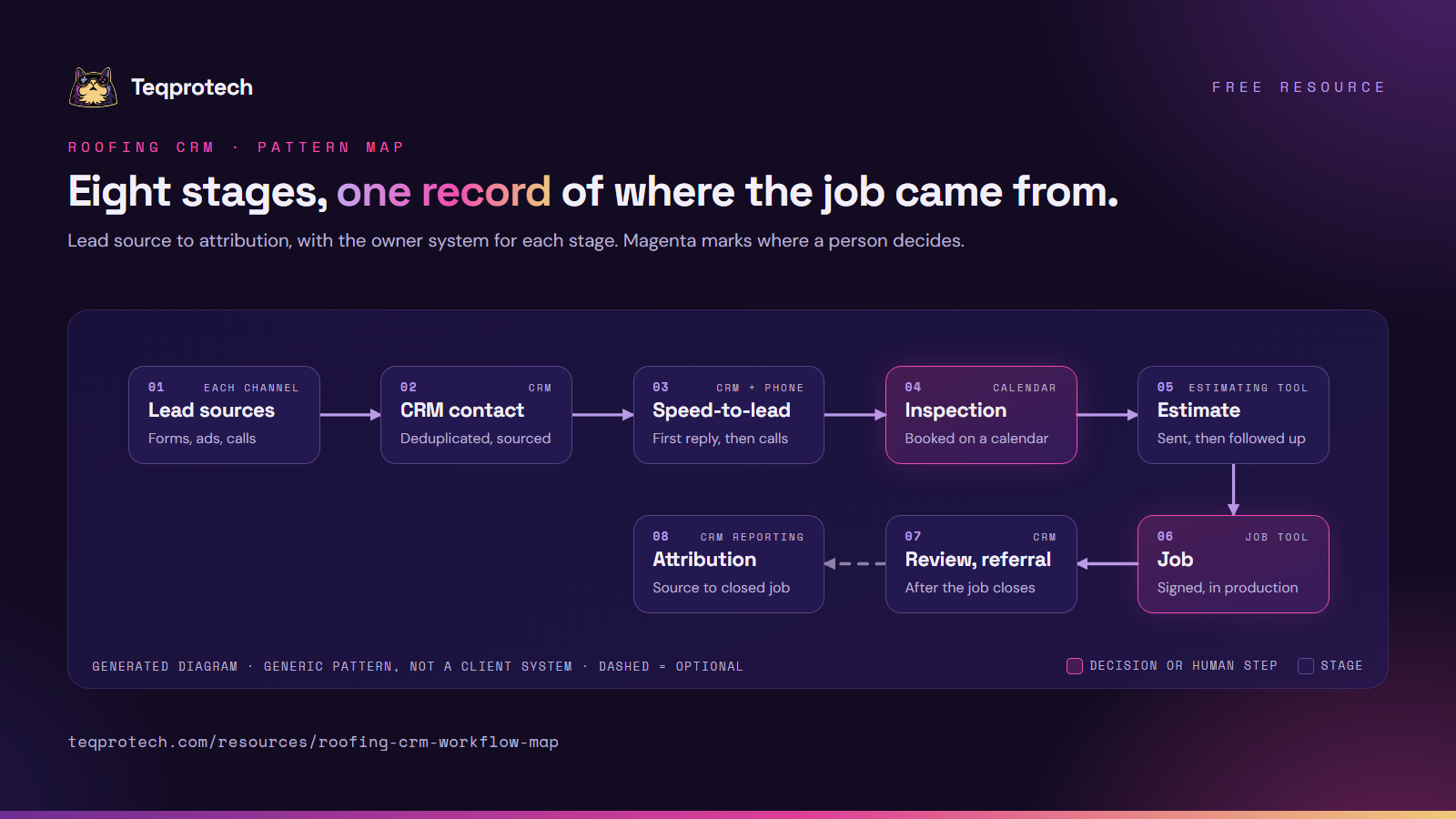
Read it left to right, then along the bottom row. Magenta marks the steps where a person decides. The dashed line is optional: a referral comes back in as a new, tagged source.
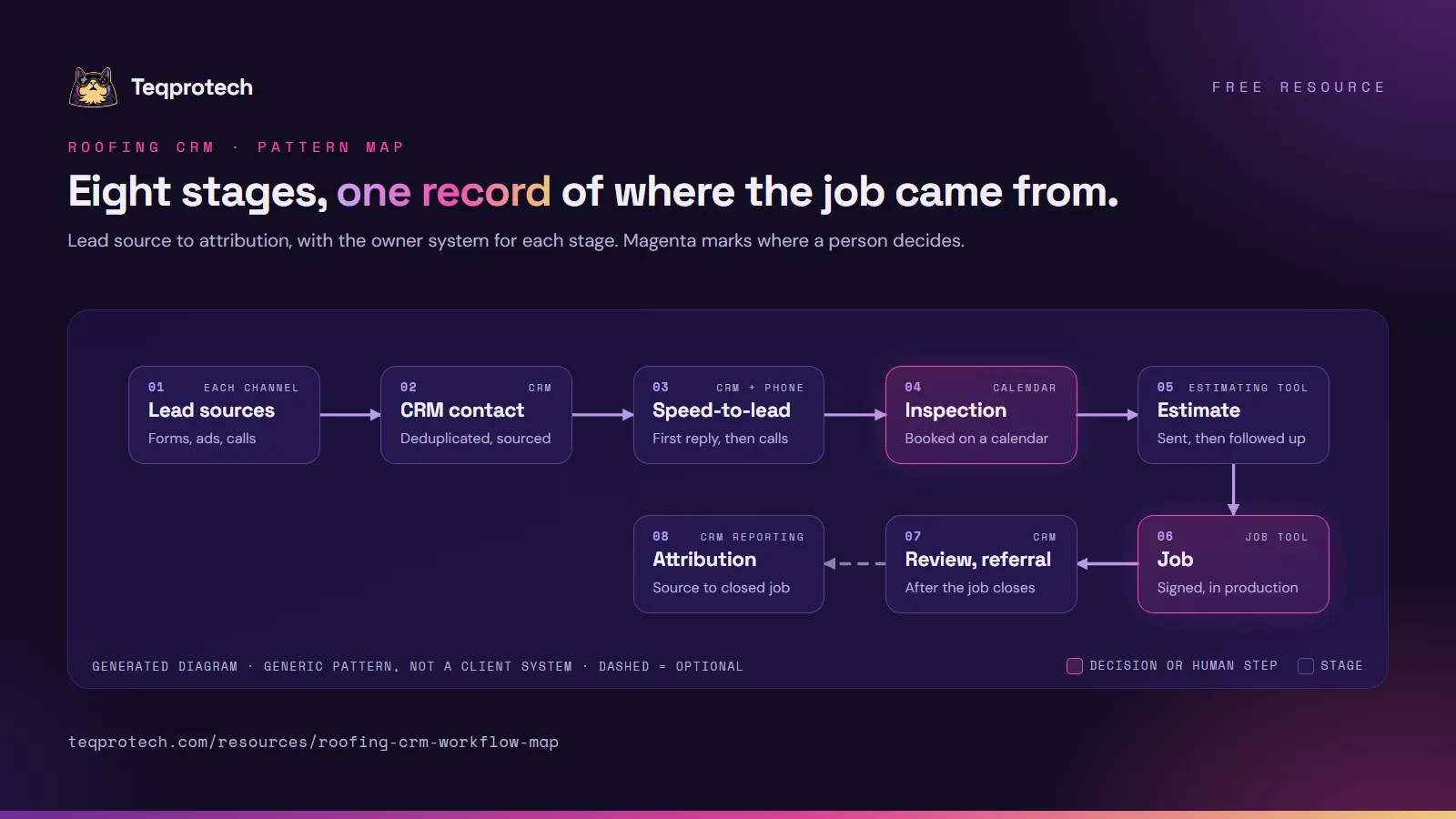
The eight-stage map on one image, with the owner system for each stage. Use it in a planning doc, a handoff or a team meeting; please credit and link this page.
Download the diagram (PNG)The pattern assumes GoHighLevel as the CRM because that is where we work most, but the stages hold for any CRM with pipelines, calendars and workflows.
| Stage | Owner system | Data fields | Automation | Human checkpoint |
|---|---|---|---|---|
| Lead sources | Each channel (site form, ad form, phone line, referral link) | Channel, campaign, ad or form name, landing page | Send every source into the CRM through one intake path | Someone reviews new or untagged sources weekly |
| CRM contact | CRM | Name, phone, email, property address, first source, consent record | Match on phone and email before creating a record | Merge suspected duplicates by hand when the match is unclear |
| Speed-to-lead | CRM workflows and phone system | First-reply time, call attempts, reply status | Confirmation text and email, call task or call attempt | The person on duty owns the first conversation |
| Inspection | CRM calendar | Appointment time, inspector, homeowner timezone, access notes | Confirmation, reminders, reschedule link | Inspector confirms the slot fits travel and capacity |
| Estimate | Estimating or job tool | Estimate amount, date sent, scope notes, decision status | Follow-up reminders until a yes, a no or a pause | The estimator decides when to call instead of text |
| Job | Job-management tool | Signed date, job ID, production status, crew | Create or update the job from the signed estimate, sync status back | Production manager schedules the crew |
| Review and referral | CRM | Job-closed date, review request status, referral link | Review request after close, referral ask later | Owner handles any unhappy reply personally |
| Attribution | CRM reporting | First source, pipeline stage, won or lost reason, job ID | Stage changes recorded automatically from the steps above | Monthly look at sources that book inspections but rarely close |
Two rules make the table work. Each field is written by one system only, and the job ID links the CRM contact to the job record so neither side has to match on names.
Contact to first reply. The first reply is only as fast as the slowest intake path. A lead form that lands in an inbox instead of the CRM skips every later stage. Send all channels into one intake path before you tune any message.
Inspection to estimate. The inspection result is often written on paper or in a phone note. Decide where the outcome is recorded (estimate needed, not a fit, insurance follow-up) and make that field required before the stage can move.
Estimate to job. This is the handoff between two systems. Pick one event that means "signed", such as a status in the estimating tool, and let only that event create the job. Manual job creation alongside an automatic one is how duplicates start.
Job to review. The review request should wait for a real "closed" signal from production, not a fixed number of days after the estimate. Homeowners asked for a review while crews are still on the roof tend to say so in public.
Roofing businesses differ in where the inspection happens, who writes estimates and how insurance work flows, so treat the stages as defaults. A retail-only roofer may merge inspection and estimate into one visit. A storm-restoration team may add a stage for insurance paperwork between estimate and job. Keep the same columns for any stage you add: owner system, fields, automation and the human checkpoint.
If you want a deeper look at the roofing side, the roofing industry page covers routing and field ownership in more detail, and the GoHighLevel service page explains how we audit and repair accounts.
Important: This is a pattern, not a client case study. It describes no specific business, account or result, and it is free to adapt.
Source: https://teqprotech.com/resources/roofing-crm-workflow-map · Teqprotech, updated October 9, 2026. Free to use and share with a link to the page above.
Tell us which CRM, job software and lead sources you run. The brief form opens with GoHighLevel and roofing selected, and we reply with questions first.